Windows 11 users are reporting legacy cursor after installing the preview update
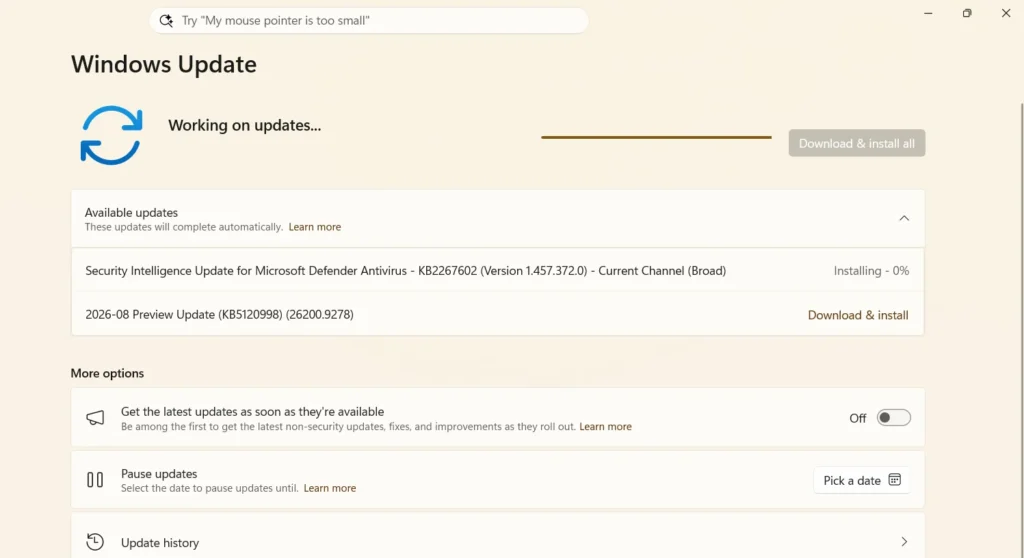
If your cursor is missing or stuck on the default style after installing KB5120998, you are not alone. Several Windows 11 users have reported KB5120998 cursor problem that is, their custom cursor disappears, the pointer becomes larger, or the system falls back to an older-looking cursor that cannot be changed. The problem has been reported on multiple PCs, and some users say restarting or changing the cursor settings does not fix it.
Table of Contents
What does this latest update bring?
The latest KB5120998 update is one of the biggest updates of the year, bringing the following:
- Movable Taskbar: You can now position the Taskbar on the top, left, right, or bottom of the screen directly via Settings > Personalization > Taskbar > Taskbar behaviors.
- Smaller Taskbar Option: Re-introduces the ability to shrink the height of the Taskbar alongside smaller app buttons, saving vertical screen space.
- Resizable Start Menu: Allows switching the Start menu size between Automatic, Small, and Large without changing display scaling settings.
- Start Menu Section Customization: Offers toggles to independently hide or show specific sections (Pinned, Recent/Recommended, or All Apps). Disabling Recent in the Start menu no longer breaks recent file lists in File Explorer or Taskbar jump lists.
- Hide Profile Details in Start: Adds an option to conceal your name and profile picture from the Start menu for screen sharing and live streaming privacy.
- Local-Only Windows Search: Introduces options to turn off Bing web results and Microsoft Store results in Search (Settings > Privacy & security > Search), restricting search results exclusively to local files, settings, and installed apps.
We also discussed the same here in this article about the K2 Improvements.
Cursor not changing after Installing KB5120998 is a indeed update releted
The reports suggest that KB5120998 is behind the cursor problem for affected systems. Users have described a white or enlarged pointer, a broken idle cursor, and the inability to change the cursor color, size, or style. Microsoft has described KB5120998 as an optional preview update for Windows 11 24H2 and 25H2, and some of its features are being rolled out gradually.
Fix for the KB5120998 cursor problem
At the moment, the most reliable workaround reported by affected users is to uninstall KB5120998. In a Microsoft Q&A thread, a user confirmed that after removing the update, their custom cursor immediately returned.
You can uninstall the update by going to Settings > System > Recovery > Advanced startup > Restart now. After Windows restarts, select Troubleshoot > Uninstall Updates > Uninstall the latest quality update, then let Windows remove it. You can also temporarily turn off “Get the latest updates as soon as they’re available” to avoid reinstalling the preview update.
KB5120998 wallpaper issues also reported
The cursor is not the only personalization issue being reported. Some users say that installing KB5120998 changes their desktop wallpaper to a solid black background. In several cases, users were able to manually restore the wallpaper, while the cursor problem persisted until the update was removed.
To summarize, if you are affected by cursor not changing after installing KB5120998 issue , uninstalling the update is currently the most effective workaround reported in the attached Microsoft Q&A and user reports. Since this is an optional preview update, users who do not need its new features can also wait for the next required update instead, which would come on 8th September 2026.