Ever wanted to get a vertical taskbar in Windows 11? See this step-by-step guide
Ever since it was introduced, the ability to move Taskbar in Windows 11 hasn’t been present. This caused a significant backlash from the Community, with people criticizing Windows too much. This rang some alarm bells at Microsoft, and they planned a number of changes, including the reintroduction of the Vertical Taskbar.
Table of Contents
Is it now possible to move Taskbar in Windows 11?
Yes, with the introduction of the Latest Windows Insider Experimental Build, Windows 11 with Build 26300.8943, it is possible to attain the Vertical Taskbar in Windows 11.
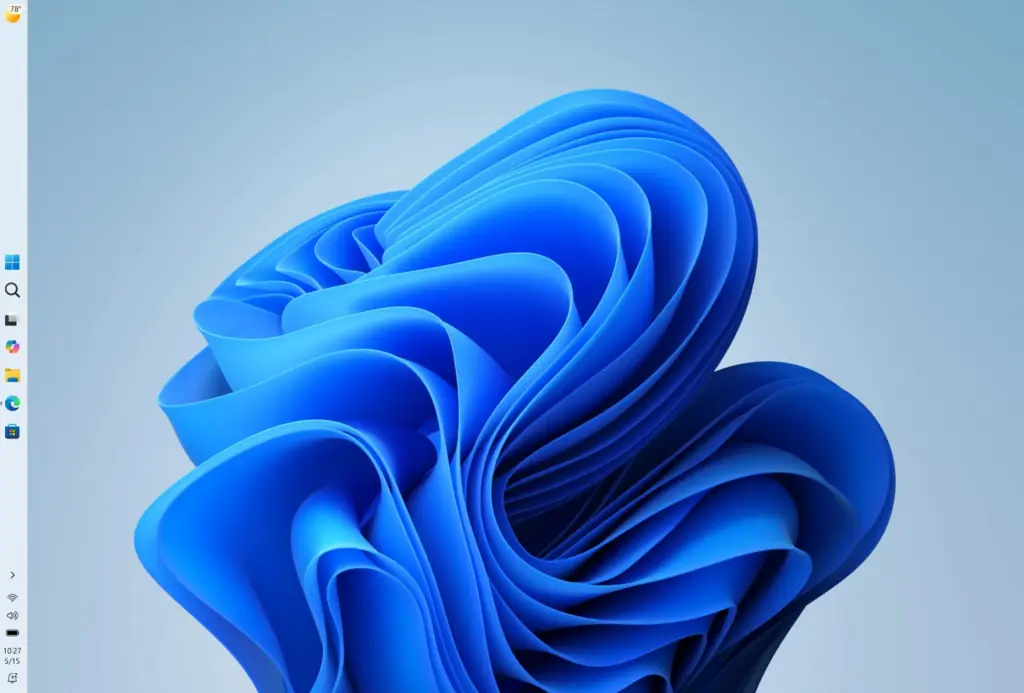
Newly added Vertical Taskbar features by Microsoft
Windows Insiders in the Experimental Channel are now getting a more customizable taskbar experience. The latest update introduces several new options that make the taskbar far more flexible and user‑friendly:
- Move the taskbar to any edge of the screen — top, bottom, left, or right.
- Choose how icons align based on the taskbar position:
- Left or right (vertical): top‑aligned or centered
- Top or bottom (horizontal): left‑aligned or centered
- Start, Search, and other flyouts adapt automatically to the taskbar’s location. For example, if the taskbar is placed at the top, the Start menu opens from the top as well.
- Better multitasking with a vertical taskbar in Windows 11 — when using a vertical layout with “Never combine” and labels enabled, every window appears as its own labeled button, making it easier to identify and switch between apps.
How to enable Vertical Taskbar in Windows 11?
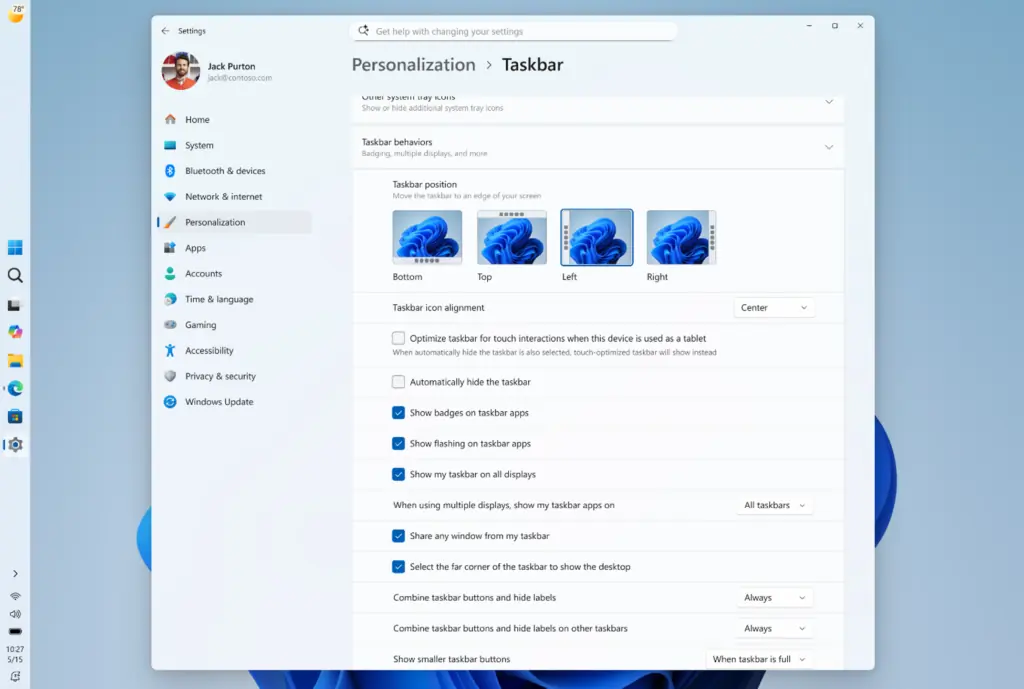
Now, to the final point, where are the Settings? Here are the exact steps on how to put the taskbar vertically in Windows 11.
- Go to Settings by pressing Windows key + I.
- Go to Personalization > Taskbar.
- Under Taskbar behavior, choose the Taskbar Position.
You can also configure other
Smaller Taskbar in Windows 11 is also now supported.
Windows 11, with the latest experimental release, has also added support for Smaller Taskbar, as seen in this video:
Go to Settings > Personalization > Taskbar > Taskbar behaviors, then set “Show smaller taskbar buttons” to “Always.” This reduces both the taskbar icon size and the overall taskbar height.
Additional Notes
- Until now, both of these features were only available with duct taping methods, for example, restoring the Windows 10 shell through ExplorerPatcher or using a paid program, for which an article is here.
- Both of these features should land in the retail version by the end of September.
- Read more about the announcement here: